
Milwin VIP and Rebate are both in the Promo area, however they answer different queries. VIP depicts a level system and accompanying reward labels . Rebate provides associated numbers, provider rows and amounts at different phases of record.
A level badge, an estimate and a claimed record are not to be taken as the same outcome. Grasping those differences makes the page easier to navigate without treating a displayed figure as a confirmed payment.
This tutorial covers the visible controls, what their labels indicate and what information to verify in the rules. As for the remainder of the dashboard and navigation, start with our Milwin guide.
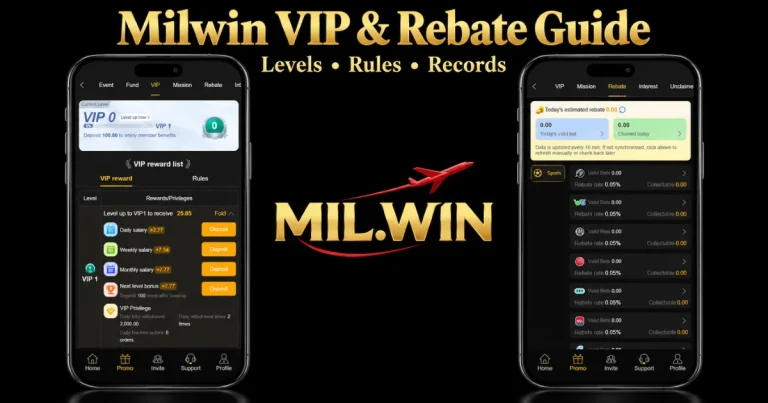
VIP and Rebate at a Glance
| Area | What the interface presents | What it does not establish by itself |
|---|---|---|
| Current Level | A VIP badge and progress display | That every listed benefit is available to that account |
| VIP reward list | Levels, reward labels and privileges | A completed claim or received payment |
| Rules | A separate place for conditions | That a promotional headline contains the full terms |
| Estimated rebate | An estimated figure for the stated period | Final approval or a withdrawable amount |
| Collectable | A figure presented at provider-row level | That an external wallet has received it |
| Claimed today | A figure classified as claimed for the day | That every related record has the same status |
Use each label in its own context. If the relationship between two figures is unclear, check the details rather than adding them together as independent balances.
Where to Get These Parts
On the home dashboard you have a VIP shortcut and other account controls. In the upper menu of the bottom navigation, there is also Promo, with VIP and Rebate in surrounding areas.
Open VIP and look at the level list in the selected tab. Choose refund to see refund data associated to providers. It is useful to track the active heading when there are multiple Promo pages with the same dark layout.
Some account information requires sign-in. Do what the page actually asks for. Opening a promotional area does not prove an account is authorised. In this Milwin Login guide we show you the visible account entry points.
Panel reading at present level
The example of the VIP interface shows Current Level, VIP 0, a progress bar and a reference to VIP 1. The progress shown is 0% with a label Level up now close by.
That example describes the situation of these details. That is not to say that each reader begins at the same point or that another narrative will show the same growth.
Check three things at once:
- The current badge: Identify the level assigned on the account’s actual page.
- The next-level reference: Keep it separate from the current level; a nearby target is not a completed upgrade.
- The progress and conditions: Read the associated rules before deciding what the percentage measures.
The panel also contains deposit-related wording. That prompt alone is not a complete eligibility policy, and this guide does not recommend spending to reach a badge.
VIP Reward List Order of Listing
Beneath the level panel, the page shows the VIP reward list. It has the titles of Level and Rewards/Privileges. It has distinct VIP reward and Rules tabs.
The ranks of the review list are numbered up to VIP 28. This shows the range seen in the interface example, but doesn’t on its own prove that all levels are now attainable or that all accounts have the same terms.
Rows can have Expand or Fold. Expand a row and it shows more information relevant to that level. That’s no sign the account has accessed it. Opening a row means reading it.
Look at the conditions on the level itself and not the labels of an extended row applied to the complete list. The higher tier examples use different terminology and data, thus one row can’t be representative of all tiers.
What the Reward Labels Mean
The expanded VIP example contains daily, weekly and monthly labels, a next-level bonus label and a VIP Privilege area. Each belongs to the level being displayed.
| Visible label | How to read it |
|---|---|
| Daily salary | A platform reward label referring to a daily schedule; it is not evidence of employment pay |
| Weekly salary | A weekly reward label whose eligibility needs the applicable rules |
| Monthly salary | A monthly reward label, separate from the daily and weekly entries |
| Next level bonus | A reward description associated with progression and its stated conditions |
| VIP Privilege | A section describing level-related limits or allowances |
The word salary is part of the interface’s promotional vocabulary. It should not be presented as wages, guaranteed income or proof of a regular payment.
Likewise, a plus sign beside a number describes how the figure is displayed. It does not verify that the amount has been credited, claimed or transferred.
Account limits and privileges
In VIP Privilege section, daily withdrawal amount, daily withdrawal count and order without commission are labelled. These are various restrictions or allowances and must be read independently.
A total limit and a count limit solve various questions. One relates to a quantity, the other to the number of requests described. Neither label means that some given request has been accepted.
Some of the upper level phrasing contains Unlimited. Read this together with the relevant conditions, it is not a promise that every request will be successful or that no other limitation is in place.
Milwin Register guide Our guide to noticeable sign up entry points for a new account. Still separate are the concerns of registration, level assignment and eligibility for rewards.
Read the Rules Before Interpreting a Benefit
The Rules tab matters because a reward list is a summary. Before relying on an entry, look for an explanation of:
- Which level or account group the condition applies to.
- What activity counts towards qualification.
- Whether verification or another account requirement is involved.
- The applicable period and any reset time.
- How a reward becomes available, and whether a separate claim is needed.
- Any expiry, limit or withdrawal condition.
These are questions to check, not a claim that every listed condition exists. If the page does not explain one of them, ask support rather than borrowing a rule from another platform.
Keep a reward schedule separate from its payment status. A daily label alone does not specify the exact time at which an account should receive something.
Milwin Rebate Summary – What It Means
The Rebate interface provides a summary panel with Today’s projected rebate, Today’s valid bet and Claimed today. Below it are rows for providers, which have their own fields.
The estimated value is provided as an approximation. It should not be called a final approved sum, or money that is already available outside of the platform.
The valid-activity column utilises the interface label Valid bet today. The complete definition of qualifying activity requires the applicable rules; it should not be presumed to be the same as a deposit, wallet balance or every recorded action.
The claimed category for today is the page’s claimed category for today. To comprehend what’s in an individual entry, look at its record, not just the aggregate total.
Provider Rows, Rates and Collectable Amounts
The illustrated Rebate view has Sports selected. Its provider rows show Valid Bets, Rebate rate and Collectable, with a right-facing arrow.
The visible rows show a rate of 0.05%. This is an interface example, not a verified current rate for every category, provider, account or region. Read the rate on the applicable row and its conditions.
The three fields serve different purposes:
- Valid Bets: The activity amount classified as qualifying by that row.
- Rebate rate: The displayed percentage associated with it.
- Collectable: The amount the row presents as collectable at that stage.
If a row opens further details, read them before drawing a conclusion from its headline figure. Do not apply one provider’s percentage to another collection without an explicit rule.
Our Milwin games library guide explains category and provider labels, which can help you identify the row being discussed.
Refresh, A Zero Display, and Updates
Rebate display says data updates every 10 minutes and provides refresh instructions when values are out of sync. Consider this statement as the mentioned update interval of the interface, not as an independently validated deadline.
A refresh control instructs the page to refresh its display. Hitting it does not create eligibility or show that an amount has been accepted.
Some background to a 0.00 figure as well. It may be a value in an estimate, qualifying-activity field, claimed total or collectible row. The figure by itself does not explain why it is zero.
See the period, category chosen and account status. If the outcome still looks incongruous with a record, save the details and ask assistance to review it.
Interest Areas Are Different VIP, Mission, Fund
Promo includes surrounding categories like Mission, Fund and Interest. Their closeness does not prove they employ the same requirements, balances or record method.
Mission assigns duties and points. VIP adds labels and levels of privilege. Rebate Displays qualified activity amounts and collectible amounts. Read the rules of the section you have opened.
Don’t use a weighted average of those numbers to get an estimated return. In particular, an Interest label in itself does not create a protected savings product or validate advertized returns.
If a Level or Rebate Record Looks Wrong
Start with a specific description. Identify the level, provider row, period and field involved. “Collectable still shows 0.00” is more useful than “VIP is broken” when the issue is actually in Rebate.
Check that the correct section is selected and that the account-access state is clear. Use available refresh instructions, then compare the display with the relevant record.
For loading or account-access problems, read our Milwin troubleshooting guide. A browser fix cannot independently confirm a reward’s eligibility or payment status.
When contacting provider support, keep reference numbers private and omit passwords or verification codes. Our informational website cannot change levels, release rewards or inspect provider accounts.
Frequently Asked Questions
Is the currency for all prize figures set out on the page?
I didn’t have any money on me. Use the currency information appropriate for the account, entry or rules.
If I open vip on another device does it create another level?
Opening a page is an access action, not evidence of a level shift. After sign-in, check the real account and badge displayed.
Can I set my own daily reset time?
Use the provider’s period and timezone as is. This instruction does not provide an option to change the prize reset time.
Does the gold badge prove the operator’s approval or licence?
No. A level badge is part of the UI. Operator identification verification and any licensing claims are independent.
Are translated reward labels sufficient to grasp the conditions?
No. A short translation can exclude vital detail. Read the whole of the applicable rules and seek for clarification if the meaning is not obvious.
Reading the Page with Clear Expectations
Mil Win VIP area levels and descriptions of the labels. Rebate provides figures concerning activities in various stages. When the regulations and its records are read with the headline display, both are easier to understand.
Separate progress, eligibility, collectible amounts and completed records. The conditions should not be replaced with a large figure or a higher badge.