
Milwin Profile brings account entry points, record shortcuts and settings-related menus into one area. It is separate from the game library, making it a useful place to identify account tools without searching through individual titles.
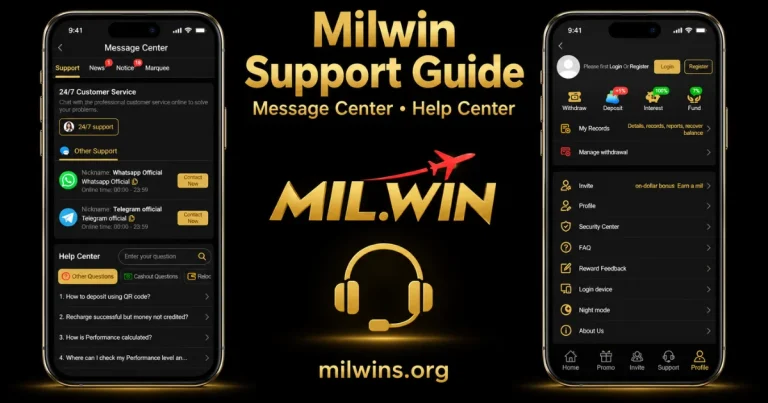
The visible layout includes Security Center, Login device, My Records, Manage withdrawal and several other rows. Their names identify where a section begins, but do not confirm every setting or action available inside it.
This guide explains the Profile menu and practical privacy checks. For the surrounding dashboard and bottom navigation, start with our Milwin guide.
Open the Profile Area
Bottom Navigation has Home, Promo, Invite, Support and Profile. Tap Profile to see the account-oriented screen and the highlighted navigation item.
The home dashboard also includes a More menu that provides shortcuts for Profile and Security Center. It gives another visual way to get to those designated regions, but you might need account access to get to the destination.
Think about the menu you opened. Levels of navigation include a shortcut panel, the Profile screen and an individual settings page.
The Panel When Logged Out
On the top of the Profile example, the page says Please first Login Or Register and has separate Login and Register buttons. The avatar is a general outline.
This is a transactional state, not a comprehensive personal profile. A generic avatar does not identify the account owner, and the viewable menu does not prove that confidential documents can be accessed.
For an existing account, use the Milwin Login guide to understand the visible sign-in entry points. If a new account is needed, the Milwin Register guide covers the sign-up routes.
Follow the form actually presented. Do not assume the Profile header establishes which identifiers or verification methods a separate login form accepts.
A Map of the Visible Profile Menu
| Entry | What the label identifies | What to check after opening it |
|---|---|---|
| Withdraw and Deposit | Money-related account shortcuts | The action, destination and applicable conditions |
| Interest and Fund | Separate platform feature areas | Their own rules and record labels |
| My Records | A records-related entry point | The record type, period and status |
| Manage withdrawal | A withdrawal-related management area | The actual options and confirmation wording |
| Invite | An invitation-related shortcut | The information presented and sharing destination |
| Profile | A further profile-related page within the menu | Which details can be viewed or changed |
| Security Center | A security-related entry point | The settings and explanations actually available |
| FAQ | A frequently asked questions area | Whether the answer applies to the current issue |
| Reward Feedback | A feedback-related section | Its instructions and submission requirements |
| Login device | A device-related account entry | Any displayed device information and available controls |
| Night mode | A display-related option | The current control and its effect on the interface |
| About Us | Platform information | The source and scope of any statements |
This map describes the visible labels. It should not be used as proof of an account’s verification status, a completed request or a particular security feature.
The Profile Tab & the Profile Row
Profile appears twice: once in the bottom navigation, and once as a row within the account menu. The bottom tab opens up to the wider area, the inner row points to a destination further along the profile.
Read the destination before you modify it. The menu alone doesn’t prove it has a username editor, phone-number field, identification form or avatar upload.
Check the field label and confirmation where an edit option is provided before saving. “There are two results, (1) changing the information displayed and (2) fulfilling a requirement for account verification.
Security Center Reading
Milwin Security Center entry shows in both Profile list and More shortcut panel. It flags a portion for inspection; it does not conduct an independent assessment of the platform’s security.
When the section is available, read the description next to each setting. The status label is not a general promise but rather should be interpreted in terms of what that particular check is measuring.
If you have the option of changing your password, verification settings or recovery controls, follow what they actually need. This advice does not guarantee the platform offers two-step verification, passkeys or a certain recovery mechanism.
Before confirming a change, know what it impacts and how to regain access if the current session is lost; Never insert account secrets into any unrelated page simply because it has the same section name.
Understanding the Login Device Entry
The menu has Login device with an icon of device style. This refers to a device-specific site but does not specify what information it provides or if it permits sessions to be deleted.
Check the labels as they are if device information is presented. Some good questions to ask:
- Recognition: Do the listed details match a device you use?
- Timing: If a time is shown, does it correspond to activity you recognize?
- Available actions: What does the confirmation say a control will remove or change?
These are checks to make where information is available not a claim that each field exists. A new label needs to be investigated and does not in itself tell who used an account.
If there is a session removal control, read its scope. Do not assume that signing out locally or changing your password has ended all of your sessions unless the provider says it has.
Passwords and One-time Passwords
If an account enables password access, use a strong, unique password. Reusing a password can put other accounts at risk if one set of credentials is hacked. Use a reputable password manager to help you generate and save alternative passwords.
Don’t use passwords based on easily obtained personal information. Do not give generic advice on passwords that should not be given as a confirmed Milwin minimum length or format. Follow the real platform requirements.
Never share verification codes. Do not give a code that you are asked for in a public conversation or support chat. Only enter a requested code in the account flow you meant to use.
Google’s published recommendations encourages the use of unique passwords, password management tools and keeping verification codes private. These are general account-protection measures, not evidence of the platform’s specific security implementation.
My Records and Withdrawals Management
Manage withdrawal is shown independently from My Records. Decide what kind of information you need before you open a money-related control.
The My Records subtitle include text regarding details, records, reports and finding your balance. That language should not be construed as a password recovery instruction or as proof that a certain balance may be restored.
Read a record’s status, era and reference details where available. A displayed amount is distinct from an issued request and from an executed transfer.
For Manage withdrawal, see the real options on the page. Just because it’s labelled doesn’t mean you can cancel a request, update payment info or that the processing time applies.
If the record is not clear, save the record information and ask provider assistance to review the record before you resubmit the same activity. We can’t review or alter provider records on our website.
Account Records Confidentiality
Account pages may contain information not appropriate for public sharing. Before posting an image, check it for passwords, verification codes, account identifiers, contact details and transaction refs.
I’m trying to solve this problem. A menu label and an error message may enough for a basic query; a public comment rarely requires a complete account page.
An Invite shortcut needs maintenance too. Read what you’re sharing and where you’re sharing it before you share anything. Do not confuse invitation material with a path to account recovery.
FAQ, Reward Feedback and Support
The FAQ row is a location to look for answers and the Reward Feedback is a different spot for feedback. Read the instructions for the area you opened.
The word Reward does not imply that giving feedback will result in any remuneration or reward. If you have terms, look at them to get a sense of the title.
Support is also available via bottom navigation. If it is an account problem, use the applicable route of the provider and describe the affected screen and answer. Our Milwin troubleshooting guide explains how to prepare a useful report.
Keep general questions separate from private account requests. This informational website does not act as the platform’s account-support team.
Nite Mode and Other Display Options
Nite mode is in the Profile list and in the More menu. This is a display-related label, and should not be portrayed as an account verification or device security setting.
Check the control itself to see what states it supports. The page is black, but that doesn’t mean the option is active — the entire interface has dark backgrounds.
Before you choose an action, make sure the rows and confirmations are still readable on a smaller screen. For computer layout and access distinctions, see our Milwin for PC guide.
Logging in with a communal device
Verify any prompt for saving account credentials on a shared device. When you are done, utilise the sign-out control provided and do not leave an account page open for someone else to access.
Device screen lock helps to block physical access. This is an additional safeguard, apart from a platform password or account session.
Make sure you still have access to the real recovery mechanism before removing saved credentials or modifying browser data. Closing a window isn’t the same as signing out of the account with the provider.
Frequently Asked Questions (FAQs)
Will opening the Profile row instantly modify account details?
Opening a destination is not the same as submitting an edit. Read any save or confirmation step before modifying info.
If I change a saved password in a browser, does the platform password change?
When you edit a saved credential, it affects what the browser remembers. It is not the same as the provider’s password-change process.
Does a Login device entry override Android app-permission settings?
No. Account-device information is a separate region on the device level from app permissions. Verify that the device is set with the correct permission settings.
Can About Us verify the genuineness of a support message?
Not of its own. Check the real destination of the contact, not just a known platform name or a generic information page.
Does the Profile screen verify the record retention period?
The menu does not set a retention period. Don’t infer a policy based on the availability of My Records, check the applicable provider information.
Reading Account Tools Carefully
The Mil Win Profile area shows where account tools start. The next step is to read the actual page, field or confirmation reached by each entry.
Separate profile editing, verification, device sessions and financial records. You are able to navigate by a menu name but it does not substitute for the conditions or the status of an individual action