
Milwin APK: A Clear Guide to the App, Games and Account Tools
Understand the dashboard, installation options, account tools and support sections.
A Quick Map of the Platform
The name appears as MIL.WIN in the interface, while readers may search for Mil Win or other spacing variations. Those spelling differences do not establish separate products or different app versions.
| Area | What the reviewed interface shows |
|---|---|
| Main navigation | Home, Promo, Invite, Support and Profile |
| Library | Sports, Mini Games, Slot, Cards, Fishing and Live collections |
| Browsing tools | Search, Hot, Demo, Recent and Favorites |
| Account access | Login and Register buttons |
| Activity pages | Event, Fund, VIP, Mission, Rebate, Interest, Unclaimed and History |
| Personal controls | My Records, Manage withdrawal, Security Center and Login device |
| Help tools | Message Center, Help Center and contact options |
| Installation information | An Install app prompt showing Mil.Win and mil.win |
This overview describes the available labels. It does not confirm that every feature works without signing in, or that every account receives the same options.
What Is Milwin Game?
Milwin game is a platform that groups several types of online games with personal account and promotional tools. Its library includes sports-related collections, card providers, reel-based games, fishing titles and live sessions. Individual tiles appear alongside provider categories, so a tile may open one title or a larger collection.
The service also displays deposit, withdrawal, fund and interest-related controls. These sections involve money-related conditions and should be read carefully. A visible reward amount is not proof of a completed payout, and participation should not be treated as a dependable income source.
For someone learning the layout, the useful starting point is the navigation. Home handles browsing, Promo groups activities, Invite contains sharing and referral records, Support organizes help, and Profile brings personal controls together.
The Home Screen: Start with the Controls, Then the Tiles
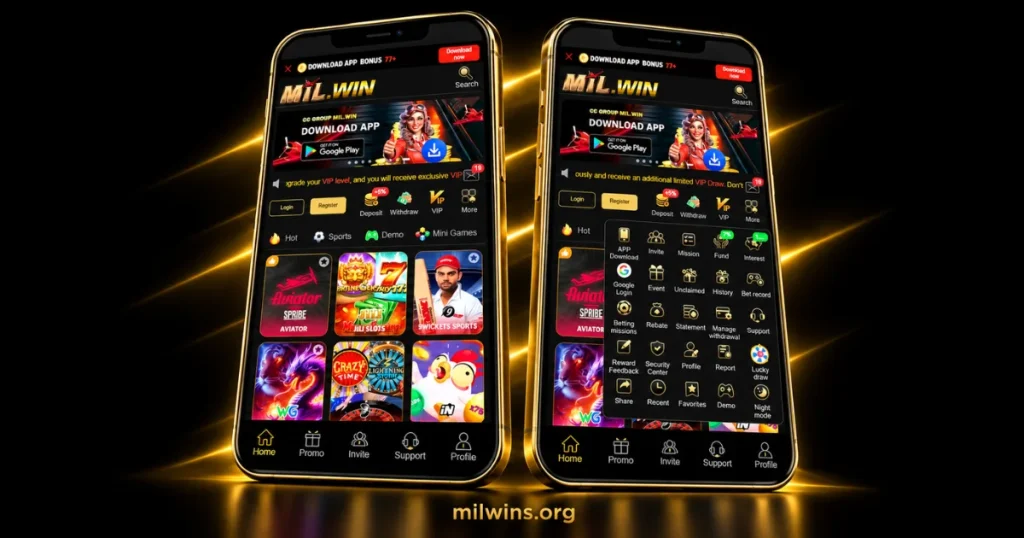
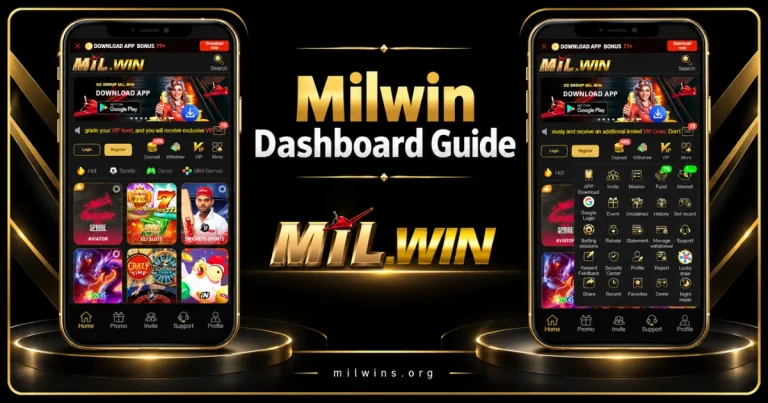
The upper part of the dashboard contains the brand logo, Search and a download strip. Below the rotating banner is a notice line and a message icon. This separates announcements from the library itself, although several elements compete for attention on a small screen.
Login and Register sit near the account shortcuts. Deposit, Withdraw, VIP and More appear in the same area. Their placement makes them easy to find, but opening a shortcut may still require an account or additional verification.
The category bar gives another route into the library. It includes Hot, Sports, Demo and Mini Games in one view, with other sections appearing as the page or navigation moves. Below it, illustrated tiles identify individual titles and provider groups.
- Search: Use it when you know the name of a title or collection. Check the result label rather than relying only on a similar-looking picture.
- Hot: This is a featured browsing section. Its position does not establish the quality, reliability or expected outcome of the listed games.
- Message icon: The dashboard shows an unread count. Open the message area to distinguish a notice from a support conversation.
- Bottom navigation: These tabs connect the main areas. In some library views, a TOP control occupies the first position.
- More: This opens a grid of shortcuts, including tools that are not immediately visible on the main dashboard.
More Opens a Second Layer of Navigation
The More milwin panel collects APP Download, Invite, Mission, Fund, Interest and Google Login in its upper rows. It also includes Event, Unclaimed, History, Rebate, Statement and Manage withdrawal.
Other shortcuts lead to Support, Reward Feedback, Security Center, Profile and Report. Share, Recent, Favorites, Demo and Night mode appear further down. These are different tools even when their icons look similar at a glance.
For example, a Statement shortcut concerns records, while a Report shortcut may serve a different account function. The menu label alone does not reveal every field inside either page. Open the relevant section and read its headings before assuming the two contain identical information.
Inside the Game Library
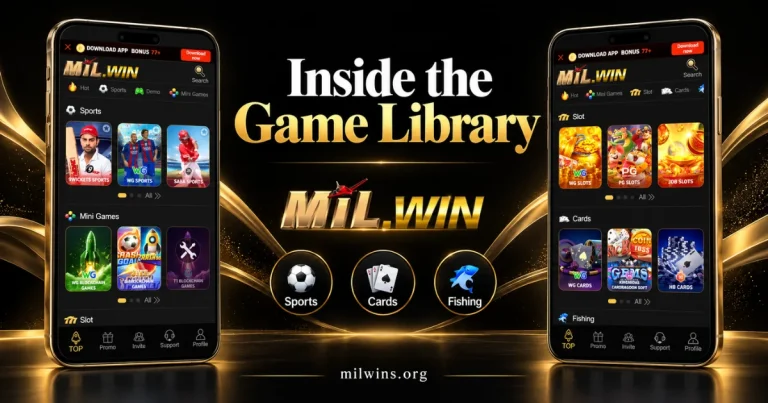
The library uses category headings, provider tiles, navigation dots and an All link. A row initially shows a limited selection, so the first three visible tiles should not be treated as the complete catalogue.
Sports: Provider Collections in One Row
The Sports section shows 9WICKETS SPORTS, WG SPORTS and SABA SPORTS. These labels identify the collections presented in the library. They do not provide a complete schedule, list of supported competitions or explanation of settlement rules.
Readers should distinguish a provider tile from a specific event. Details about an event, its status or any related account activity belong on the page that opens after selection. The illustrated cricket and football artwork serves as a category cue rather than a specification.
Mini Games: Several Collections, Different Rules
Mini Games includes tiles labelled WG BLOCKCHAIN GAMES and JILI BLOCKCHAIN GAMES, alongside another collection. Aviator also appears as an individual title in the featured area.
The word “blockchain” in a tile name does not independently verify fairness, a technical audit or a particular wallet arrangement. It is a displayed label. Each title may have different controls, round timing and account conditions, so the category name cannot substitute for its own rules.
Slot: Browse by the Listed Provider
WG SLOTS, PG SLOTS and JDB SLOTS appear in the Slot row. The layout emphasizes provider collections with bright artwork, making it possible to enter a group before selecting an individual title.
A collection tile does not establish the number of games inside it or any published return percentage. Those details would need to come from the relevant game information. Avoid assuming that every title under the same provider follows identical rules.
Cards: A Collection Is Not a Confirmed Game List
The Cards section displays WG CARDS, CARDRAGON SOFT and HB CARDS. This confirms the visible collection names without establishing that a particular poker or traditional card variant is available in every account.
Some third-party guides describe long lists of card titles. The more precise approach is to check the collection itself and record the names actually offered. A card illustration can represent a category without identifying the rules of one specific game.
Fishing: Separate Provider Rows
WG FISHING, JDB FISHING and JILI FISHING appear under Fishing. Their ocean-themed tiles help distinguish this area from sports and cards, while the same row controls keep browsing consistent.
A fishing collection may contain several titles with different layouts. The tile does not explain their controls, connection needs or account requirements. Use the title-level information for those details rather than transferring assumptions from another collection.
Live: Collections with a Different Presentation
The Live section shows SEXY LIVE, EVOLUTION and EZUGI LIVE. Their artwork differs from the illustrated provider tiles elsewhere in the library, but the surrounding navigation remains familiar.
The existence of a Live category does not establish streaming quality on every connection. It also does not confirm a licence, an independent assessment or the availability of every title shown in provider advertising. These points need separate evidence.
Demo, Recent and Favorites Have Different Jobs
Demo is a separate browsing option. Where a practice mode is available, check what it allows; a demonstration does not necessarily reproduce every condition of an account-based session.
Recent provides a route back to recently accessed items, while Favorites is intended for saved selections. Star icons appear on some tiles. Keeping these tools separate helps users understand why a saved item and a recently opened item may appear in different lists.
Milwin App Access: Identify What the Button Opens
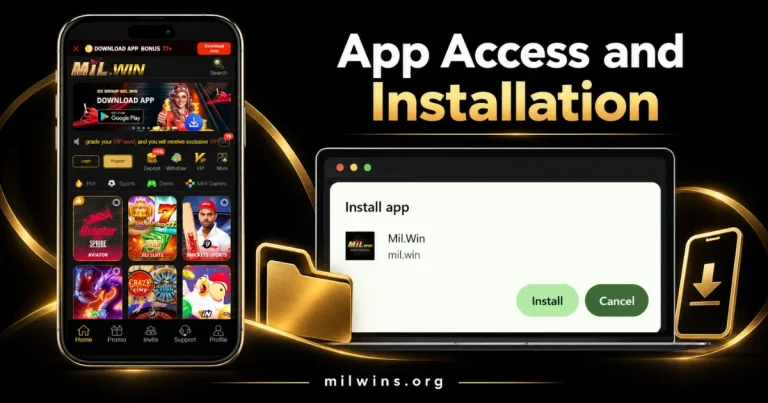
The reviewed download flow includes an Install app prompt with the name Mil.Win and the domain mil.win. It offers Install and Cancel. That is useful information about the prompt, but it does not show a package version, file size or minimum operating system.
There are several possible access methods: an Android package, a browser-installed web app or an app-store listing. A home-screen icon alone does not tell readers which method they have used. Check the destination and installation screen before describing the result as a native application.
Android: Check the File and Installation Details
If an Android package is offered, the milwin apk should be assessed using its actual file and installation information. A number copied from another website may refer to an older package or a different access method.
Before installation, review the source address, package details, requested permissions and any device warning. Keep device protection enabled. Do not dismiss a warning simply because a download button uses familiar branding.
If Android requests permission for a browser or file manager to install applications, review that specific permission and remove it afterwards when it is no longer needed. A browser-install prompt may follow a different process and may not involve downloading an APK at all.
iPhone: Separate Browser Access from an iOS App
An Android APK cannot be installed directly on an iPhone. Browser access, a home-screen shortcut and an App Store application are different options.
The reviewed material does not confirm a dedicated iOS listing. An article should therefore explain the available route without inventing an iPhone package or presenting an Android download as universal device support.
Computer: A Browser Page Does Not Confirm Desktop Software
The platform may be viewed through a browser where access is available, but the mobile interface does not establish a Windows or macOS installer. Check the actual desktop offering before describing a dedicated computer application.
On a larger screen, assess whether text, menus and account controls remain usable. A page that opens successfully can still have layout limitations. Browser access should be described according to its observed behavior rather than assumed desktop compatibility.
Package Information That Still Needs Confirmation
| Detail | What can currently be stated |
|---|---|
| Current APK version | Not established by the reviewed installation prompt |
| Download size | Not shown in that prompt |
| Minimum Android version | Requires current package information |
| Required RAM and storage | No verified minimum specifications supplied |
| Dedicated iOS app | Not confirmed in the reviewed material |
| Desktop installer | Not confirmed in the reviewed material |
| Google Play availability | A banner logo alone does not verify a live listing |
Leaving an unknown specification clearly identified is more useful than publishing a precise number that cannot be supported.
Registration and Login: Follow the Form Actually Provided
Milwin displays Login and Register buttons on Home and in the signed-out Profile view. The reviewed material establishes these entry points, but it does not show the full registration and login forms.
For a new account, open Register and read the fields that appear. Enter only the information requested by that form, choose a password you do not use elsewhere, and review any account terms before submitting personal details.
For an existing account, open Login and use the identifier requested on that screen. Do not assume it always accepts both a phone number and a username. If a recovery option appears, follow its instructions instead of repeatedly guessing a password.
SMS verification appears in Mission and Fund-related conditions. That does not prove it is mandatory for every login or registration route. Likewise, Google Login appears in More, but the shortcut alone does not confirm how account linking works.
Promo: Read the Rules Behind Each Banner
The Promo area contains Event, Fund, VIP, Mission, Rebate, Interest, Unclaimed and History tabs. Some extend beyond the initial screen width. This means an option may be present even when it is not visible in the first view.
Each section has its own purpose. Event presents campaigns, Mission organizes tasks, Rebate shows activity-based calculations, and History provides a route to past entries. They should not be grouped into one vague promise of rewards.
Event Filters and Redemption Tools
The Event page offers All, NEW, Player Activities, Agency Activities, Official Media and Download the app filters. History, Refresh rewards and Redeem Code controls appear in the side area.
Campaign banners contain headline figures and promotional wording. The practical details sit in the associated event rules: eligibility, timing, qualifying actions, limits and claim conditions. A banner amount does not establish that every visitor will receive it.
The presence of Redeem Code also does not confirm that a particular code is valid. Check the applicable event, expiry information and account conditions before treating a code shared elsewhere as usable.
Fund: A Separate Balance with Separate Conditions
The Fund page shows Total deposit and Fund as different figures. Deposit and Withdraw controls sit below them, while the lower area includes records, cumulative activity requirements and Rules.
The displayed rules mention SMS verification, a percentage-based fund credit and conditions for moving the fund into the balance. This makes it important to distinguish the promotional fund from money already available for withdrawal.
Some wording, including a zero-valued deposit threshold, needs clarification before being converted into practical guidance. If a condition looks incomplete or unusual, ask support to explain it rather than assuming the broadest possible interpretation.
VIP: Levels, Listed Benefits and Eligibility
The VIP page shows a current level, progress toward another level and a reward list. The reviewed view includes VIP 0, an expanded VIP 1 row and higher levels further down the list.
Rows contain labels such as daily salary, weekly salary, monthly salary and next level bonus. These are the platform’s promotional terms; they do not establish employment, wages or predictable income.
The privilege area also lists withdrawal-related allowances. These should be read as tier-specific information rather than universal limits for every user. The Rules tab and the account’s actual status are needed to interpret eligibility.
Mission: Task Lists and Progress Records
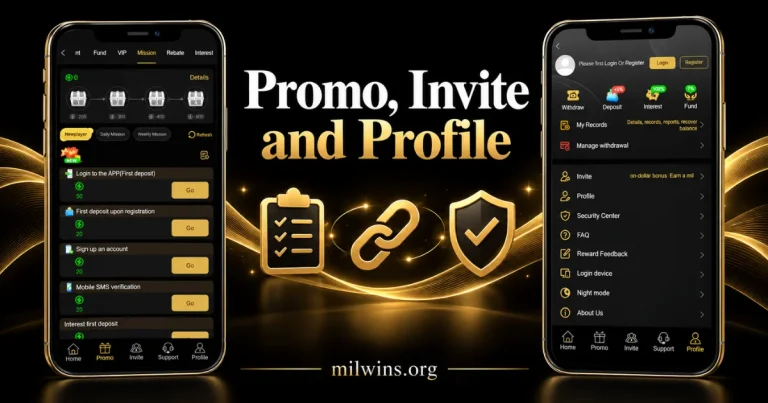
Mission separates Newplayer, Daily Mission and Weekly Mission. The upper area contains a points indicator, milestone chests and a Details link, while the task list provides Go buttons.
Visible tasks relate to account creation, mobile SMS verification, app login and deposit-related activity. A listed task is not proof that it has been completed. Check its description and status to understand what action the platform is recording.
The milestone indicators and task values also serve different functions. A progress threshold should not automatically be described as cash or as an amount available for immediate withdrawal.
Rebate: Estimated, Claimed and Collectable Are Different
The Rebate page separates Today’s estimated rebate, Today’s valid bet and Claimed today. Provider entries show valid activity, rebate rate and collectable amounts. The visible Sports entries display a 0.05% rate.
A note says the data updates every ten minutes and offers a manual refresh route. This explains why an estimated value and a claimed total may not change at the same moment.
Do not apply that visible rate to every category or account. The provider entry and its rules determine the relevant calculation. An estimate also does not establish that a claim or transfer has completed.
Interest: Treat the Displayed Percentage as a Claim
Interest shows deposited funds, a settlement-cycle label, an unclaimed figure and Deposit, Transfer out and Claim buttons. Its rules discuss full-cycle completion, early withdrawal and a transfer threshold.
The interface displays an APR 100% label. That figure is a platform claim, not an independently verified return. The presence of an interest page does not establish that the service is a regulated savings product or that funds receive deposit protection.
Read the conditions and calculation details separately from the headline percentage. The page also shows a cycle cap, so timing information alone does not explain the full arrangement.
Unclaimed and History: Check Status Before Assuming Completion
Unclaimed and History are available through the Promo navigation and More shortcuts. They provide separate routes for reviewing pending items and previous activity, although their full contents are not established by the menu labels alone.
Where an item appears, read its status and associated conditions. A campaign being listed, a task being completed and a reward being transferred are separate events.
Invite Links, Sharing Tools and Personal Data
The Invite section contains Home, Promotion Sharing, My Data, Commission and Subordinate tabs. Its main page displays a QR code, a link field, a copy control and options for sharing through WhatsApp, Telegram and Instagram.
It also shows a settlement-cycle label and a Commission Rate entry. A scrolling line presents activity attributed to other accounts. Those displayed figures do not confirm what the current user has received or establish independently verified payment outcomes.
If reviewing an invitation link, inspect the address before copying it. For account-related questions, use My Data and the applicable records rather than relying on a public banner or another user’s displayed total. Referral conditions should be explained from their rules, without presenting invitations as guaranteed earnings.
Profile: Records, Account Controls and Device Access
The signed-out Profile page asks users to Login or Register. Beneath that prompt, it displays Withdraw, Deposit, Interest and Fund shortcuts, followed by My Records and Manage withdrawal.
Further entries include Invite, Profile, Security Center, FAQ, Reward Feedback, Login device, Night mode and About Us. This layout brings records and settings into one place while keeping them separate from the game library.
- My Records: Start here when reviewing account activity. Read the record type and status rather than assuming every entry represents a completed transaction.
- Manage withdrawal: This is a withdrawal-related management entry. Its menu presence does not confirm specific payment methods, binding fields or account limits.
- Security Center: Review the controls actually offered. A shield icon alone does not verify encryption, an audit or protection of funds.
- Login device: Check the available session or device information. If unfamiliar access appears, use the account’s supported security and support options.
- Reward Feedback: Use the relevant feedback route for reward-related questions, keeping the activity details and timestamps available.
- Night mode: This concerns the display. It should not be described as a security setting or a guaranteed performance improvement.
Payment Information: Confirm the Method and the Status
Milwin includes Deposit, Withdraw and Manage withdrawal controls, but the reviewed material does not establish the full payment-method list. JazzCash, Easypaisa, bank transfers, fees and minimum amounts therefore should not be presented as confirmed details without the current payment screen.
For any money-related record, distinguish a submitted request from a completed transaction. Read the status, reference number, amount and time before contacting support. A promotional deposit badge does not confirm processing speed.
Keep the transaction reference from your own payment service and compare it with the platform record. Avoid making another payment simply to investigate an unresolved one. Share only the information needed to identify the issue, and keep passwords and verification codes private.
Support, Notices and the Help Center
The Message Center separates Support, News, Notice and Marquee. This arrangement helps readers distinguish a personal problem from a general announcement or a scrolling dashboard message.
The Support page labels its service as 24/7 and provides contact options described as WhatsApp Official and Telegram official. These are the platform’s labels, not proof of response time or independent verification of the contacts.
Below the contact area, Help Center includes a search field and question categories. Visible questions concern QR-code deposits, payments not credited and performance-related account information.
For a useful support request, describe what happened, where it happened and when. Include the relevant record reference if available. A clear account of one issue is easier to investigate than a message containing several unrelated problems.
Privacy and Permissions Deserve Their Own Check
An interface can look organized without proving how personal information is stored. Before providing data, read any available privacy notice and check what information the access method requests.
For an Android package, review permissions such as notifications, storage or other device access in context. For browser use, check site permissions separately. These are different permission systems and should not be treated as interchangeable.
Use a unique password, avoid leaving an account open on a shared device, and never pass verification codes to someone claiming to help. Review saved login details and active sessions where those controls are available.
What the Footer Does—and Does Not—Establish
The footer groups shortcuts under game, account and support headings. It includes routes to Mission, Unclaimed, VIP, Invite, Event and Fund, along with library categories and help tools.
It also contains a statement referring to Curaçao authorization. However, the displayed licence-number field is blank. This text does not independently establish the claimed regulatory status, and this guide does not verify a licence or legal approval for a particular location.
Publisher identity, terms, privacy information and independently checkable authorization details need separate review. A footer statement should not be turned into an unqualified claim that a platform is approved or secure.
Useful Features and Practical Limitations
| Useful aspect of the layout | Limitation to keep in mind |
|---|---|
| Main sections remain accessible through bottom navigation | Some account functions require login or further steps |
| Provider collections are grouped by category | The first visible row is not the complete catalogue |
| More gathers many shortcuts in one panel | A dense icon grid can take time to learn |
| Promo separates tasks, fund, rebate and history | Each section has different conditions |
| Profile includes records and device-related entries | Menu labels do not establish the full underlying controls |
| Help Center offers search and question categories | Contact availability does not guarantee a response time |
| An installation prompt identifies an app name and domain | Package specifications remain unconfirmed |
When Something Does Not Work as Expected
If the page loads incompletely, first check the connection and whether the problem affects other sites. Close unnecessary tabs or background applications, then reload once rather than repeatedly opening the same section.
For a login problem, check the identifier requested by the form and use the available recovery route. Do not share a password or code with a contact found in an unrelated message.
If a rebate figure appears unchanged, consider the update interval shown on that page before assuming the record is missing. For a payment issue, check both the platform record and your payment service’s status, then contact support with the references.
If installation fails, read the actual error. Storage, compatibility and a security warning require different responses. Repeatedly downloading the same file does not resolve every cause, and a warning should be investigated rather than bypassed.
Frequently Asked Questions
Final Overview
Milwin combines a broad library with account records, promotional pages, sharing tools and support options. Its layout becomes easier to understand when each area is explained by its actual purpose rather than described with broad claims about rewards or performance.
The most useful checks concern the access method, current package details, account controls and the conditions attached to money-related sections. Confirm those points before relying on a download label, promotional figure or footer statement.