
When Milwin is not working, start with what you can see. A blank page, a login rejection and an installation failure require different checks. If you treat them as the same problem it can lead to unnecessary downloads or changes to your account.
Identify where the problem starts. Before the homepage loads, after choosing Login, inside a collection, or when opening an installed app. Keep the exact wording of the error. It is more useful than some vague description such as ‘everything stopped’.
This guide includes practical checks for each situation. It doesn’t confirm an ongoing outage nor promise that a device setting will fix a provider-side issue. See our Milwin guide for an introduction to the interface.
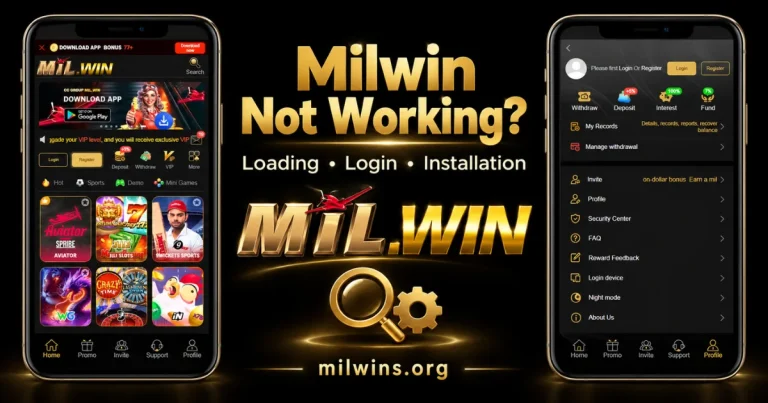
Match the Symptom to the Right Check
| What you see | Start here | Avoid assuming |
|---|---|---|
| The whole page stays blank | Address, connection and browser | That your account has been closed |
| Login opens but access fails | Form instructions and exact response | That reinstalling will reset a password |
| One collection does not load | Its name and the affected item | That the entire platform is unavailable |
| An installed Android app closes | Restart, updates and app settings | That all local data should be deleted |
| Installation cannot finish | File type, source and displayed warning | That every download is an APK |
| A money-related record is pending | Record status and provider support | That repeating the action will resolve it |
Work through the relevant checks one at a time. After each change, test the same point again so you can tell whether the result has changed.
If Website Does Not Load
Check the address first.
Read the entire address, not just the logo. A typo or a saved old link can take you to where you don’t want to go. If a browser tells you it can not find a page, take that message at face value instead of looking for a weird replacement download.
Compare with an unrelated site
Visit another, familiar site in the same browser. 3. If more than one page isn’t working, check your connection first. If only one destination fails the comparison reduces the problem but does not isolate the cause.
Reload once and re-open the browser
Reload once for a normal page loading error. If the browser itself hangs, close and restart it. If you are unsure of the outcome of an action, do not keep refreshing a payment or any other submitted action.
Optimise browser load
Close any programs that you don’t need to be running, and any tabs that you aren’t using. Check for a browser update using the browser’s normal update controls. Google’s Chrome guidance includes address, connection, browser and memory checks for loading errors Google Chrome Help Hub
When the Home Screen Opens but a Collection Does Not
Having a working dashboard doesn’t mean every provider collection is responding. Identify the affected category, provider label and individual item where visible.
Make sure you are viewing a collection tile or a specific title. The library groups several providers under broader headings, and confusing those labels can make a support report less useful.
Our guide to the Milwin games library will help you find categories and browsing controls. If only one entry is unavailable, but the page around it is, report that entry and not a full platform outage.
The cause or reopening time cannot be established by means of a tool or maintenance-like symbol. See the description with the item or ask Support.
but you can’t sign in
Read the response shown by the form. A missing-field message, an invalid-credentials response and a verification problem are different. Verify the identifier: Use the type of account detail that the actual form requests. Don’t assume it will accept an email address, phone number, or username interchangeably.Review Saved Entries Autofill may have an old id or password. Please verify before submitting the selected entry.
Follow verification instructions: If asked for a code, follow the instructions on the form and any visible resend timer. Do not disclose codes. Use the recovery path provided. Follow the recovery control if provided. Troubleshooting your device will not help you recover your account. Our Milwin Login guide covers the obvious entry points and access checks. If the account response is ambiguous, keep the response wording for support instead of guessing credentials over and over.
Android App Will Not Open
These tests are for an installed Android app. You may have to troubleshoot the browser instead of an installed website shortcut or browser window. Use the normal restart control of the phone to restart. Look for updates to devices and apps from the source you got the app from. If the app isn’t responding, go to your phone’s app settings and use the Force stop option if available.
Open it back up and see if it immediately closes or goes to a particular screen. Android settings vary from manufacturer to manufacturer. As a general rule, Google recommends users to restart, update and force-stop an app that isn’t responding. These steps do not verify this platform’s package or make it compatible. Help with Android Android Help
Clear cache carefully
If necessary, check the storage settings of the app and select Clear cache. The cache holds temporary data and is cleared independently of the Clear storage or Clear data selections.
Android documents say that clearing storage removes app data. Before you use the confirmation, read it and make sure you understand what local information might be lost. Clearing the cache can also cause the app to take longer to open. Android Help Don’t Reset Data for Every Loading Problem. It doesn’t know if the account is restricted or if there’s an issue with the service. Android Help
Do not treat a data reset as the first response to every loading issue. It cannot establish whether an account restriction or service problem exists.
Clear cache with caution
If necessary, check the storage settings of the app and select Clear cache. The cache holds temporary data and is cleared independently of the Clear storage or Clear data selections.
Android documents say that clearing storage removes app data. Before you use the confirmation, read it and make sure you understand what local information might be lost. Clearing the cache can also cause the app to take longer to open. Android Help Don’t Reset Data for Every Loading Problem. It doesn’t know if the account is restricted or if there’s an issue with the service.
If Access Fails on a Laptop or Desktop
Confirm whether you opened a browser page, an installed website or a native desktop package. An app-like window can still depend on browser technology.
If the normal browser page works but the saved shortcut does not, compare the shortcut’s destination with the page you checked. If a panel appears cut off, inspect browser zoom and window size before assuming the control is absent.
Do not use an Android APK as though it were an ordinary Windows installer. For access-method details, read our Milwin for PC guide.
Browser Cookies and Site Data: Know What You Are Altering
Cookies can help websites remember a sign-in and preferences. Deleting them may sign you out. Review the browser’s selected data categories before confirming a deletion.
Chrome provides options for managing data from individual websites. If you decide to remove site data, check the website name carefully rather than clearing unrelated accounts by mistake.
Changes to cookie settings can also affect website functions. There is no verified Milwin-specific cookie requirement in this guide, so it does not recommend allowing every cookie or changing privacy settings across all sites. Google Chrome Help
Pending Records Require a Different Response
A pending deposit, withdrawal or other money-related record is not the same as a frozen browser. Check the status shown in the relevant record area and keep the reference number privately.
The interface includes My Records and Manage withdrawal. Their presence does not confirm a processing deadline, successful completion or that funds are secure.
If the outcome is unclear, ask the provider to check the existing record before submitting the same request again. Reinstalling or clearing cache cannot confirm its processing status. Avoid publishing account numbers or transaction references in public comments.
When to Contact Support
Use the Support entry provided by the platform after checking its destination. A familiar name on a social profile is not independent proof that the account belongs to the operator.
Give a short, specific report containing:
- The screen or collection where the problem begins.
- The exact error message and the time it occurred, including your time zone.
- Your device model and operating system.
- Your browser name, or the app version if the device actually displays it.
- The checks already tried and whether they changed the result.
Keep passwords and verification codes out of the report. Hide private identifiers in any image you share.
The Message Center includes News and Notice areas. Read the date and scope of a relevant notice; an old announcement does not establish today’s status. Our website publishes information and cannot inspect provider accounts or resolve their records.
Frequently Asked Questions
Does the timeout message clarify the specific cause?
No. It is a sign of a request that did not finish within the expected time frame. More checking is needed to see where it went wrong.
Do I need to make new account after reinstall?
Reinstall is a device operation, not proof of new account needed. Follow the existing account’s instructions for access or recovery.
Does another user’s working phone prove my account is restricted?
No. That means their access was successful in that scenario. Still need to check changes in devices, connections and account answers.
Is it that if you do not get a support notification, then an answer has not been sent?
Not quite. If a message area is provided, check it directly instead of waiting for a notification to arrive.
Can a successful reload fulfil the pending record?
No. Verify the actual status of the record or ask the supplier to confirm. That’s a different result . The page opens okay .
Before Making Another Change
Before you change something again
For a Mil Win not working issue, keep the symptom, access method and error message together. Begin with the least significant relevant check and cease making irrelevant adjustments when the problem clearly requires provider help.
There is no one repair for loading, account access, installation and pending records. An accurate explanation lets you determine the proper next move without fabricating a cause.