
The Milwin Register is the place to start the process to set up a new account. The interface being assessed presents a Register button on the home page and another one in the logged-out Profile section. There are two options to go to registration without looking through the game catalogue.
Check the address and read the information needed before filling in a form. These are different steps for account creation, program install and payment activity. Opening the platform or adding an app icon doesn’t establish an account on its own.
This article discusses the many entrance points available and the checks you need to do when signing up. The whole form is not yet configured, therefore check the particular phone-number, username, invitation-code or verification criteria in the screen that opens.
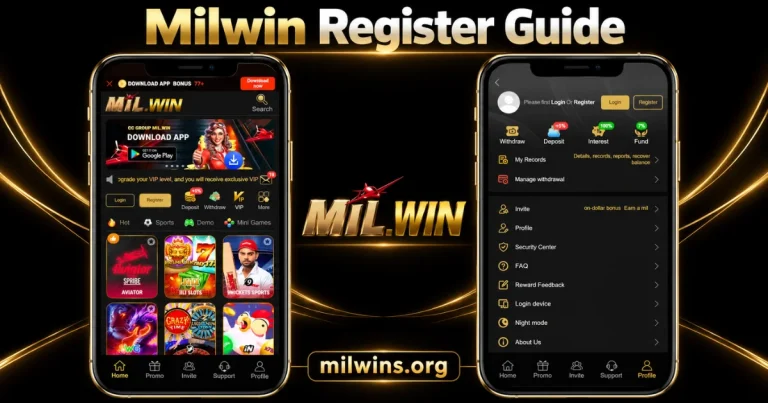
Where to Find the Register Option
On Home Register is next to Login, and also next to the account shortcuts. In Profile, a notice for users who are signed out says Login or Register, with both buttons appearing near the top.
When creating a new account, select Register. If you already have an account, go the sign-in process in our Milwin Login instructions.
The Profile question is a reminder that account access is distinct from perusing the menu. It does not specify all the fields of the registration form.
How to Approach the Sign-Up Form
Use the following sequence as a form-reading guide. Follow the actual labels and requirements displayed on your device.
- Open the intended platform: Check the destination address before entering personal information. A similar logo does not confirm the identity of a page.
- Select Register: Use the button on Home or the signed-out Profile page, then wait for the registration screen to load.
- Read the requested fields: Identify which details are required and which are optional. Do not assume the form accepts every type of account identifier.
- Enter your own information: Review spelling and numbers carefully. If a contact method is requested, use one you can access yourself.
- Choose a unique password if requested: Keep it separate from passwords used for email, payment services and other websites.
- Complete verification if shown: Follow the instructions on the form. Do not send a verification code to someone offering to register on your behalf.
- Review before submitting: Read any available terms, check the information and use the form’s submission control. Then read its confirmation or error message.
Do not assume that pressing a button completes the process. The response shown by the form determines whether registration succeeded or another step is needed.
Which Details Are Confirmed?
| Registration detail | What the reviewed interface establishes |
|---|---|
| Register on Home | Visible beside Login |
| Register in Profile | Visible in the signed-out account prompt |
| Required account identifier | Not confirmed without the form |
| Invitation-code requirement | Not confirmed |
| Verification during sign-up | Must be checked on the actual registration screen |
SMS verification appears in other account-related areas, including Mission and Fund conditions. That does not establish the same requirement for every registration route.
Another Step Is Installing the App
The platform may provide one or more supported access routes through which the account registration can occur. The registration form will tell you what information is needed. Installing an APK file does not immediately establish an account.
If you want to understand the access method first, read the Milwin Download tutorial. Checks for a browser installation prompt and an Android package separately.
Also, the presence of a deposit shortcut or incentive banner does not show that money is necessary to open an account. Read the registration terms, don’t assume them from the adjacent advertising material.
Common Sign-Up Problems and What to Review
| What happens | What to check next |
|---|---|
| A field is rejected | Its label, format instructions and the exact error message |
| The form reports an existing account | Use the available login or recovery route rather than guessing new details |
| A requested code does not arrive | The contact information, message instructions and any displayed resend interval |
| The form stops responding | Connection stability and whether the page finished loading |
| No confirmation appears | Read the page response before assuming an account was created |
Avoid repeated submissions without checking what happened to the first one. If support is needed, describe the error and the stage at which it occurred. Keep passwords and verification codes out of the message.
After you create an account
If registration is successful, follow the next instruction displayed. The service may open an account view or prompt you to sign in. The reviewed buttons alone do not confirm which response does every account receive.
Verify that the account details generated are what you expect to be generated. Profile has entries for personal information, Security Center and Login device, but their full controls need to be evaluated within the account.
For an explanation of the broader navigation check our Milwin platform guide. Thus, creating an account is separated from the complete library and the promotional-page overview.
Frequently Asked Questions
Can I register from Profile instead of Home?
When signed out, the Profile view displays a Register button. It offers another obvious access point, but the examined information does not indicate if every path leads to the same form.
Invitation code? Need to input one?
That condition is not confirmed. Look for a code field on the form and determine whether it is optional or mandatory.
Does registration guarantee a reward?
Don’t think of creating an account as a prize. Each individual offer has its own eligibility, timing and claim restrictions.
Can this site establish a new account for me?
Independent information can be found on milwins.org. It doesn’t run the platform or register users for accounts.
Final Registration Check
The real sign-up form, found via Home or Profile, is a suitable beginning place, says Milwin Register. Read its fields, check the info, examine the response after submission.
Separate establishment of account from installation and promotional conditions. Do not trust an older guide for any fields or verification rules not shown by the current form.