
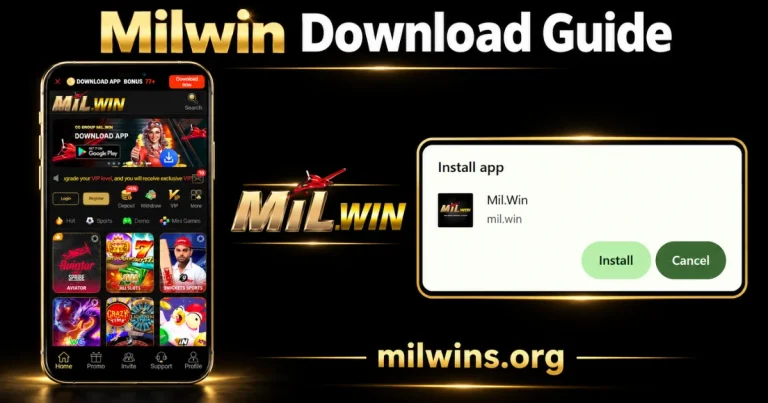
To start Milwin download, you have to identify the access method available on your device. The platform displays download controls on its home screen, but the installation flow reviewed here pops up an Install app prompt. It shows MilWin, the address milwin, and the options Install or Cancel.
That’s a key distinction. A browser install prompt and an Android package are different ways to get access to a device. You should check that this button opens a browser prompt, saves an APK file, or takes you to an app-store listing before proceeding.
This page describes those routes, what details to check and common installation questions. It does not set an untested version number or file size for the application.
What the Install Prompt Is Telling You
The prompt says that the app name is MilWin and it says milwin underneath An icon appears next to the name, with Install and Cancel as the possible actions.
It does not display the package version, download size, minimum Android version required, or publisher certificate. These details should be taken from the real package info or a verified relevant listing.
Read the name and the destination address. Similar branding doesn’t mean that two download pages are serving the same file, publisher, or access method.
Three Access Routes to Keep Separate
Browser Installation
Some websites can be installed through a compatible browser and opened in an app-like window. A browser may create an icon without following the same process as a conventional Android package installation. Google Chrome Help
The prompt for installing the app has been reviewed and pertains to a browser-based installation route. But the prompt doesn’t dictate all technical details of the installed app or whether it has offline functions.
Download Android APK File
An APK is an Android package install. If the app download saves a file that ends in.apk, look at the file and installation screen before opening it.
Review the source, required permissions, compatibility information, and any security warning. The APK file name or the recognizable logo will not tell you what is inside.
App Store Listing
The app-store flow should open a real listing with package and publisher info. The presence of a Google Play graphic in a promotional banner does not confirm that a live listing exists.
If a button leads to a store, check out the listing itself. If it launches a browser prompt or downloads a file, describe that method exactly.
Android: See the Route Before You Install
Before you download a Milwin game on Android, look at what’s going to happen after you choose the appropriate download control. The next screen shows you which checks are relevant.
- If you receive an Install app prompt: Note the application name and the address it displays. Only proceed if you know the source and what the browser is trying to install.
- If you are downloading an APK file: Check the available package details of the file and device requirements. Wait for it to finish downloading before you try to install it.
- If Android asks for permission to install: See which browser or file manager is requesting permission. Then you can withdraw that permission when you don’t need it anymore.
- If device protection warns you: read and investigate. Treat a warning as a routine step to dismiss, and keep protection enabled. Android Help
- Android Help Post-install: Launch the resulting icon and make sure the expected interface loads. An icon can be successfully displayed without all account functions working.
Your device’s installation menus may be different. You’ll see different options on your phone depending on the version of Android, instead of the exact same path of settings.
iPhone: Look for a Compatible Access Method
You can’t install an Android APK on an iPhone. If you are on iOS, look for a browser link or an app that is compatible with the platform in the App Store.
The material reviewed does not justify an iOS listing. Thus a web shortcut and a native iPhone application should be treated separately.
If you have a browser, check how the page works on your device. Make sure navigation, text and account controls are still usable before you begin using the shortcut regularly.
Accessing a computer and installing on a desktop
A mobile download button does not mean that software for Windows or macOS is available. A computer browser may provide an option to install a web-app, but that is different from downloading a stand-alone desktop installer.
On your computer, read the prompt or file type. Just because a phone install guide works for a desktop OS, don’t assume it will.
An Android emulator is not a verified requirement or supported route just because the platform has an Android-related download, either. First, check the actual compatibility information for the service.
Download Details That Need Confirmation
| Detail | Current position |
|---|---|
| Displayed install name | Mil.Win |
| Address shown in the prompt | mil.win |
| Available prompt actions | Install and Cancel |
| APK version and file size | Not established by the reviewed prompt |
| Minimum Android version | Requires current package information |
| RAM and storage requirements | No confirmed minimum supplied |
| Dedicated iOS or desktop app | Not confirmed in the reviewed material |
The numbers in an older guide may refer to a different package. Compare them with the current file or listing before using them as specifications for the APK download.
Permissions, Storage and First Launch
The amount of storage needed depends on the access method and the files it uses after installation. A listed download size is not always the total space needed later, where available.
Context of Review Permissions. Site permissions in a browser and Android app permissions are separate systems. Don’t just approve a request because the interface is using familiar branding. Look at what each request allows.
First time run, see if you can read this page and access its navigation. For more detailed information about Home, Promo, Invite, Support and Profile, please check our Milwin platform guide.
Common Installation Problems
| Problem | What to check |
|---|---|
| Download stops partway | Connection stability, available space and whether the file completed |
| APK installation fails | The exact error message, package compatibility and device warnings |
| No installation prompt appears | Whether the browser and website offer that installation method |
| An icon opens the wrong page | The destination address and source used when creating it |
| The application loads incompletely | Connection, browser or app state, and any service notice |
A helpful error message is better than the generic message that the installation failed. Take a note of the language before seeking support help. Do not give your passwords or verification codes to anyone who is troubleshooting an installation issue.
Frequently Asked Questions
Does this guide work for a tested APK file?
This page has no verified package file (see audit report above). The guide describes the access flow that has been reviewed and the checks that need to be performed before using a download source.
Can you cancel the install prompt?
Yes. The reviewed dialogue has Cancel, so you can leave that prompt without selecting Install.
Do I get an account when I install the app?
The installation and the account creation are two different steps. The interface offers entry points to account access through Register and Login.
Is software available without internet connection after installation?
Do not assume that the installation makes the service fully available offline. Check out which functions still work without a connection (account activity may still require the service to be reachable).
If I have a working browser page does that mean APK will work?
No. Browser access and an Android package might have different compatibility requirements. Check the requirements for the particular access method.
Some Last Things Before You Move On
The first screen that comes up after selecting the download control is a very useful starting point for Milwin download. Before installing, find out how to access the package, read the source, and verify the package details.
Keep the device protection on, and report a successful install by a verified account login. This page is not an official milwins.org claim to run the platform or to provide its official software. It is an independent information page.